Export to Jama Connect
Export of Architecture Elements
-
To start the export of architecture elements to a Jama Connect project, select the package from which the architecture elements shall be exported.
Right-click the package and select Specialize > LemonTree.Connect for Jama Connect > Export to Jama Connect: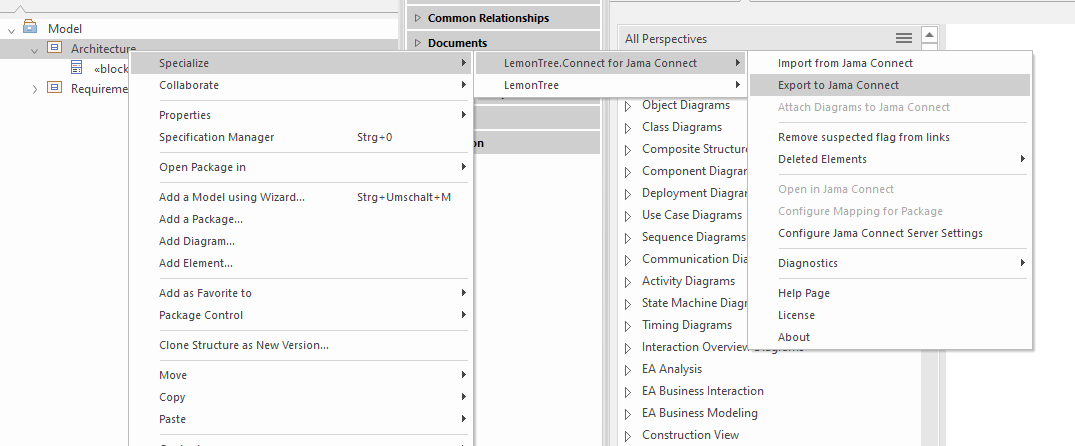
-
In the next step, the mapping has to be configured for the export. For more details, please refer to this page:
Mapping Configuration -
Continue with "Save".
- After the configuration has been saved, the export will automatically start.
-
Before the project in Jama Connect will be changed, LemonTree.Connect will display how much elements will be added or modified. If you agree to this action, confirm with "Continue":
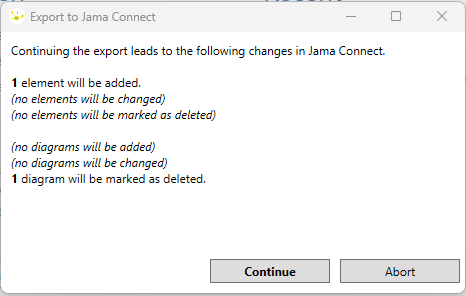
-
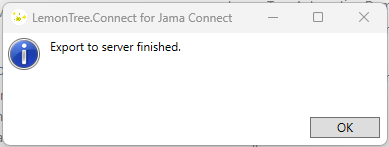
After the export was finished, confirm the message box:
-
Reload the project in Jama Connect to see the exported architecture elements.
Navigate from an exported architecture element to Enterprise Architect
It is possible to navigate from an exported architecture element to the original element in Enterprise Architect.
The link to the EA element is stored as an "Association" at the item in Jama Connect:
If you follow this link, the element will be selected in the corresponding EA project file, if it is opened.
If you don't have it opened, the file provided in the hyperlink will be opened.
EA Loading Time
Depending on your EA installation and on your system specification, the opening of EA and the selection of the element in EA can take several minutes.
Export of Diagrams
LemonTree.Connect will export any mapped diagrams that are contained in the package which is used for the export.
See Diagram Mapping on how to include diagrams in your mapping.
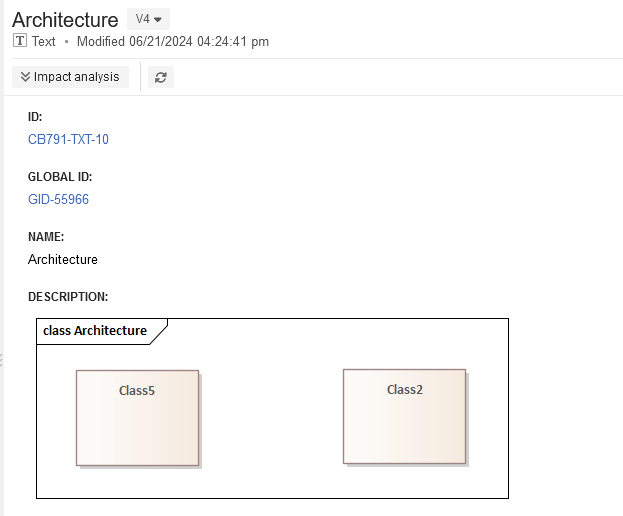
Diagrams will be exported as own item along with the diagram image, which will be added as attachment. The diagram image will be embedded into the "Description" field.
Attach Diagrams to elements that originate from Jama Connect
It is also possible to export diagrams from a package which was configured for import from a Jama Connect Set, with the menu entry: Specialize > LemonTree.Connect for Jama Connect > Attach Diagrams to Jama Connect.
This is useful if you want to have a visual representation, i.e. for some requirements which were imported to EA in the corresponding Jama Connect Set.
The diagrams are created as items according to the diagram mapping rules included in the mapping configuration of the import package. Without a matching diagram mapping rule, the diagram will not be exported. See Diagram Mapping on how to include diagrams in your mapping.
Feature only available for import packages
The menu entry is only avaiable for packages configured for import from Jama Connect.
Export of Trace Links
If existing and mapped, any type of link (=connector) is exported from EA to Jama Connect. Please refer to Export of Traceability Links between Jama Connect Requirements and EA Elements for more details.