Extended Import Mapping Filter
Extended Import Mapping with Property Filtering
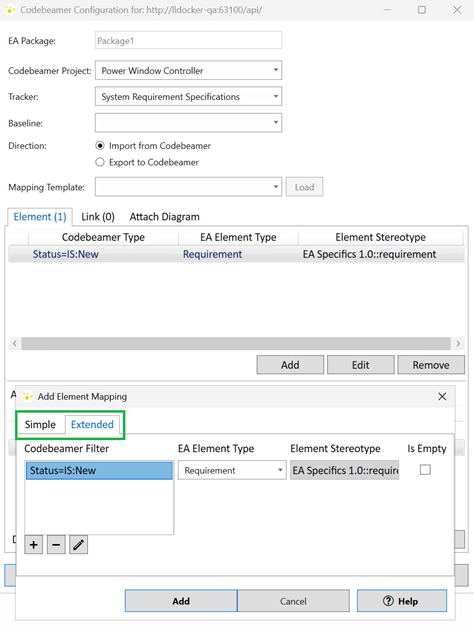
When creating import mapping rules, you can choose between the Simple and Extended tabs.
On the Simple tab, mapping rules are defined solely by the Codebeamer item type. For details please refer to the general Import Mapping section.
The Extended tab provides additional configuration options, allowing you to filter based on property values.
Note
Once a rule has been created, the selected tab cannot be changed.
How Property Filtering Works
In the Extended tab, you can define conditions that determine which items are imported. Instead of importing all items of a given type, you can restrict the import to those that match specific property values.
For example, you might configure a rule to import only items in the Accepted state.
This ensure that only approved requirements are populated in the model.
Any Codebeamer field from your tracker configuration can be used for filtering. You can also combine multiple conditions to explicitly define which items are relevant for your project.
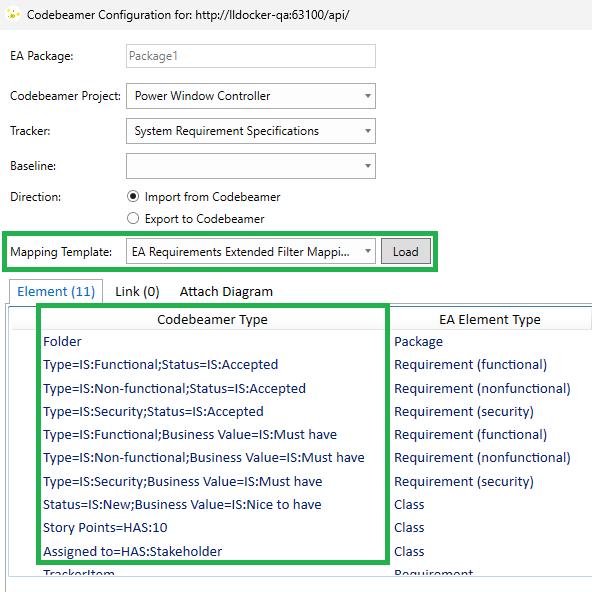
The example template EA Requirements Extended Filter Mapping with extended import rules is available in the mapping dialog.
How to create an extended mapping rule
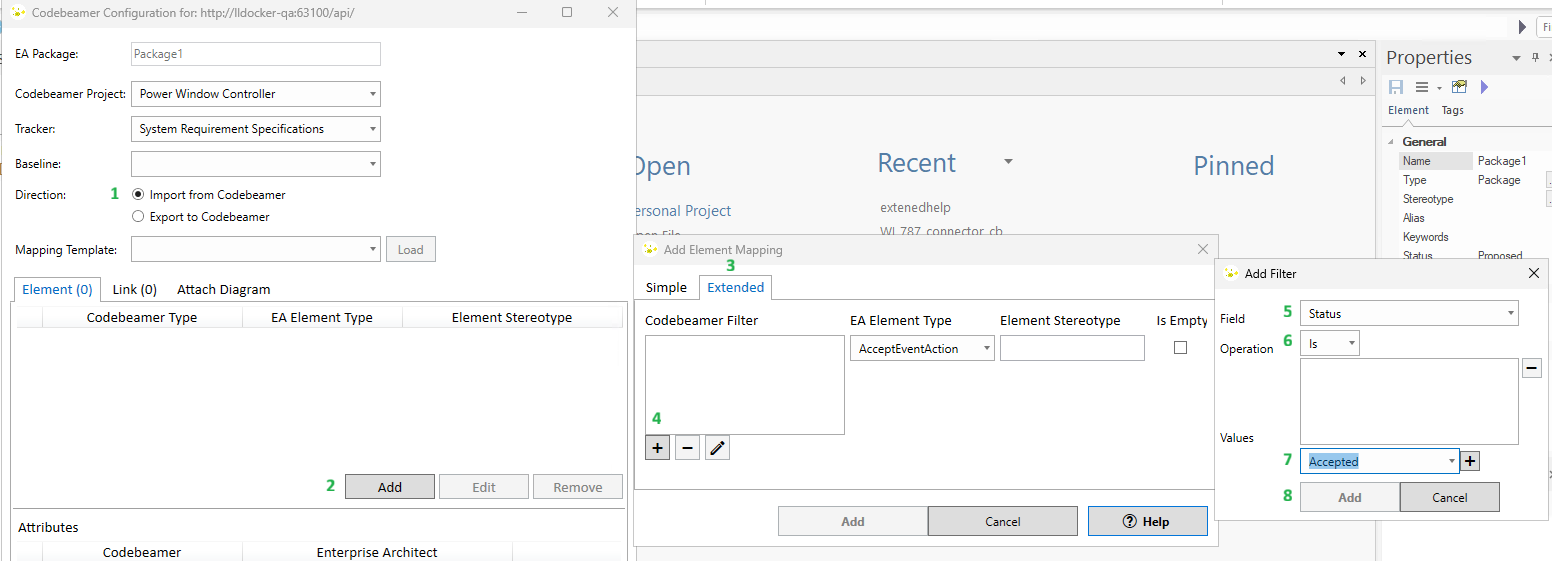
- Open the Mapping Dialog with direction set to Import from Codebeamer.
- In the Element tab, select Add.
- In the Add Element Mapping dialog, choose the Extended tab.
- Click the plus (+) symbol to open the Add Filter dialog.
- Select a field from the drop-down list.
- Choose an operation:
IsorHas. - Choose a value and click the plus (+) symbol to add it.
- Click Add to confirm the configuration.
- The defined filter will appear in the format Field=Operation:Value
- Choose an EA Element Type and optionally a Stereotype.
- Click Add to create the mapping rule.
Example Extended Filter Mapping template
The template EA Requirements Extended Filter Mapping provides suggestions for possible uses of extended rules. It demonstrates how property filters can be combined to control which items are imported into Enterprise Architect.
| Codebeamer Type | EA Type | Explanation |
|---|---|---|
| Folder | Package | Simple type rule which imports all items of type Folder as Package elements. |
| Type=IS:Functional;Status=IS:Accepted | Requirement (functional) | Imports only items of type Functional with status Accepted as FunctionalRequirement. |
| Type=IS:Non-functional;Status=IS:Accepted | Requirement (nonfunctional) | Imports only items of type Non-functional with status Accepted as NonfunctionalRequirement. |
| Type=IS:Security;Status=IS:Accepted | Requirement (security) | Imports only items of type Security with status Accepted as SecurityRequirement. |
| Type=IS:Functional;Business Value=IS:Must have | Requirement (functional) | Ensures items of type Functional with highest priority are imported, regardless of status. |
| Type=IS:Non-functional;Business Value=IS:Must have | Requirement (nonfunctional) | Ensures items of type Non-functional with highest priority are imported, regardless of status. |
| Type=IS:Security;Business Value=IS:Must have | Requirement (security) | Ensures items of type Security with highest priority are imported, regardless of status. |
| Status=IS:New;Business Value=IS:Nice to have | Class,EAREQ::UserRequirement | Ensures all items with status New and lowest priority are imported as UserRequirement, regardless of type. |
| Story Points=HAS:10 | Class,EAREQ::UserRequirement | Ensures all items with the Story Point value 10 are imported as UserRequirement, regardless of other properties. |
| Assigned to=HAS:Stakeholder | Class,EAREQ::UserRequirement | Ensures all items assigned to the Stakeholder UserGroup are imported as UserRequirement, regardless of other properties. |
| TrackerItem | Requirement | A fallback rule for testing purposes. Imports all items as requirements without additional stereotype, showing which items would be excluded by the configured extended rules. |